Important Information
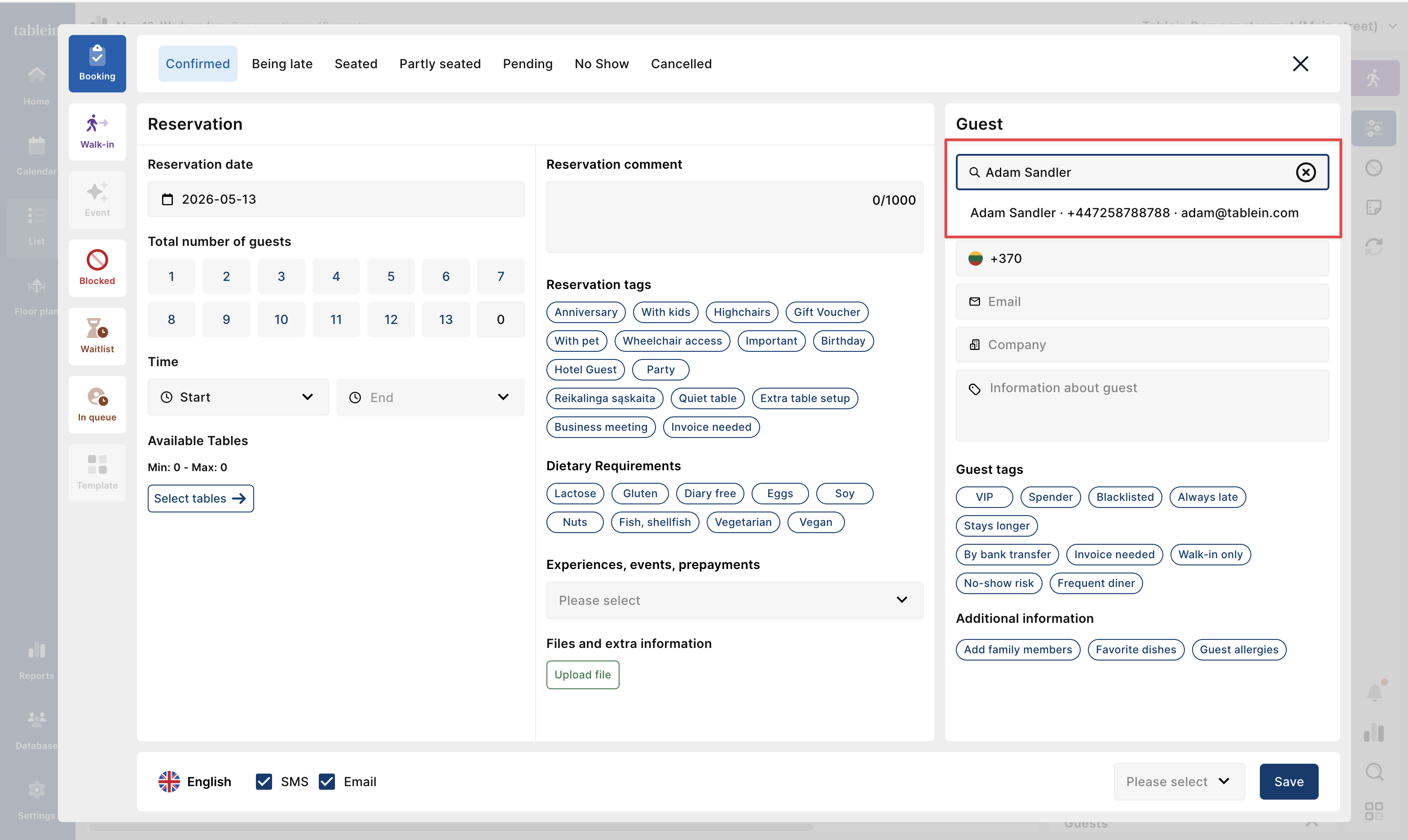
Tablein saves guests by their phone number and uses it as a unique guest ID. Because of this, please do not use the same phone number for different people.
If you cannot ask for a guest’s phone number, it is better to leave the phone number field empty. You can enable or disable the phone number requirement in your Reservation Settings.
Accessing Your Guest Database
To open your guest database, go to:
Database → Guests
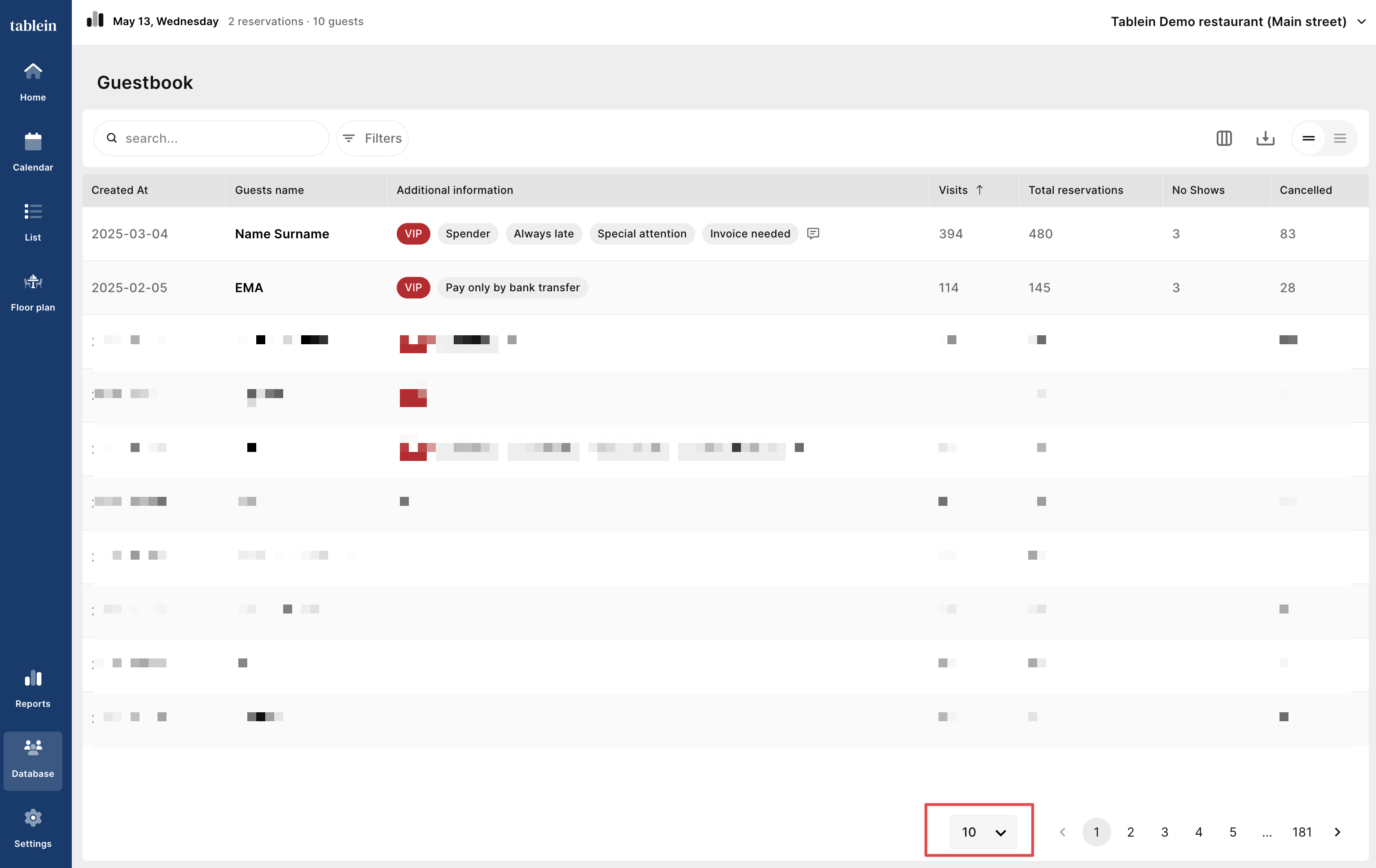
On the main screen, guests are displayed by the latest created date.
At the bottom of the page, you can choose how many records to display per page - from 10 up to 100 records.
Customizing the Guest List
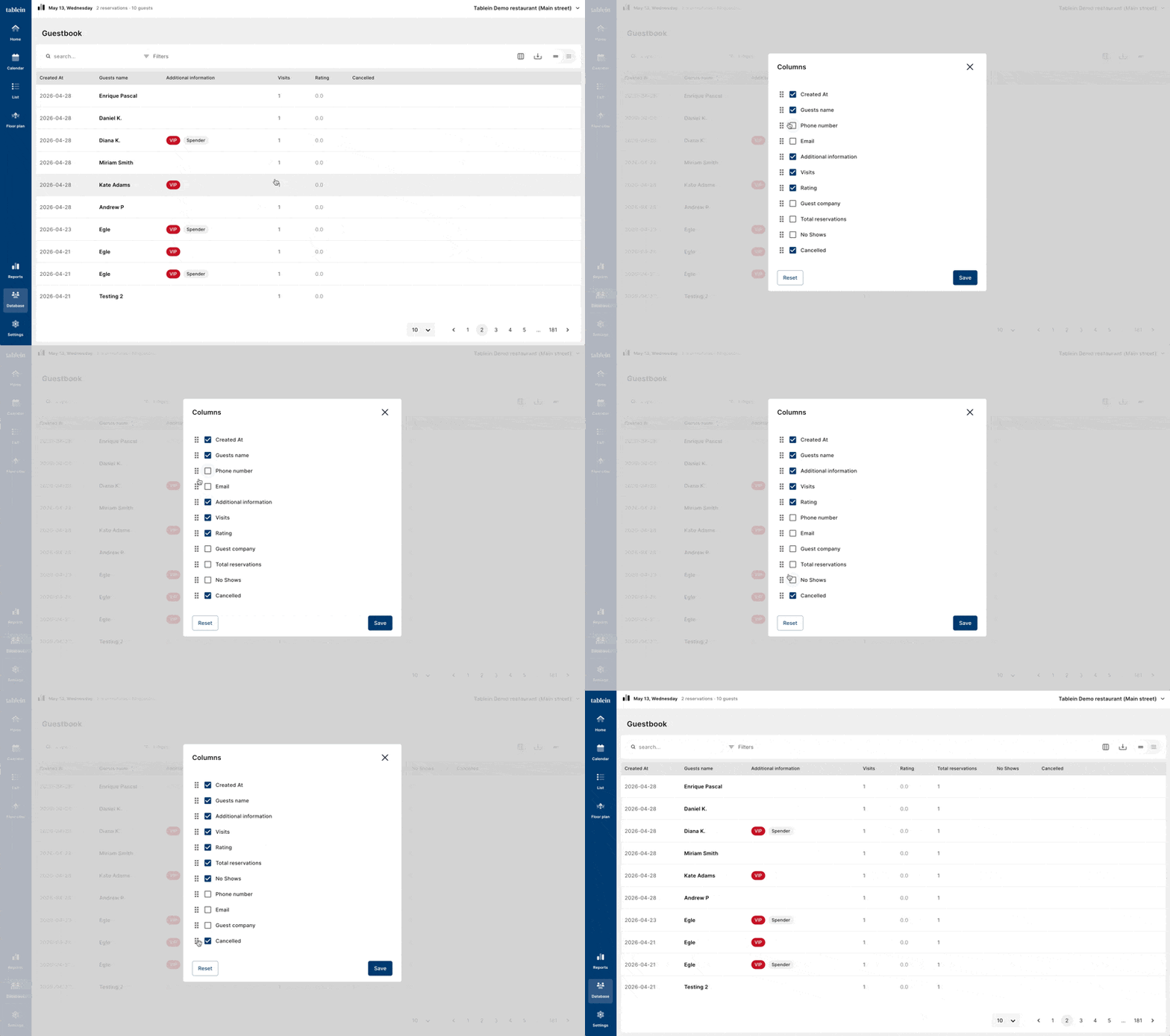
You can customize the visible columns by clicking the Columns button.
From there you can:
- Enable or disable columns
- Drag and drop columns into your preferred order
You can also sort information by clicking on any column header:
- Ascending order
- Descending order
To view guest notes quickly, click the expand icon (three horizontal lines).
Searching and Filtering Guests
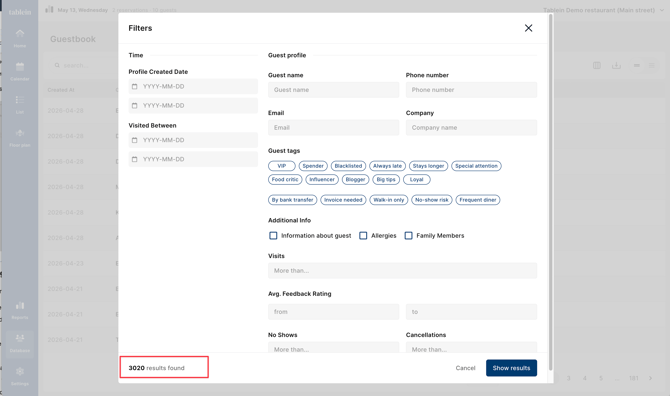
You can search, filter, and export guests using one or multiple filters:
- Profile created date
- Visited between dates
- Guest name
- Phone number
- Company name
- Guest tags
- Additional information such as:
- Notes
- Allergies
- Family number fields
- Number of visits between X and Y
- Average feedback rating between X and Y
- No-show count greater than
- Cancellation count greater than
After selecting filters, you will see the total number of matching results at the bottom of the filter panel.
If the result count is 0, you can quickly adjust filters before clicking Show Results.
After clicking Show Results, you can:
- Open filters again to make adjustments
- Remove active filters one by one directly from the filter result line.
Guest Profile
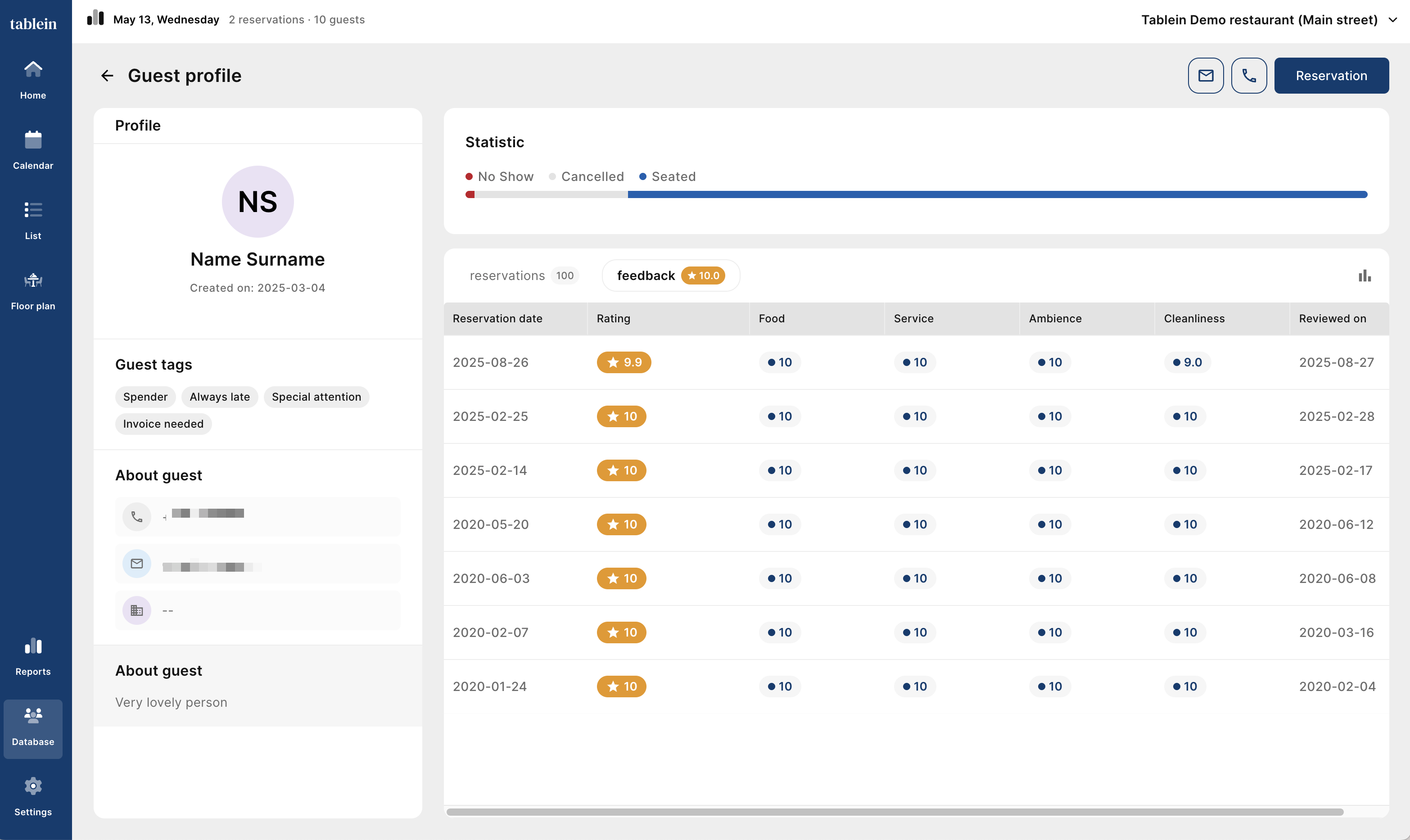
When you open a guest profile, you will see:
- Guest tags
- Contact details
- Guest notes
- Reservation history
- Feedback history
Coming Soon
Currently, guest information can only be edited from the reservation modal.
Soon we will add:
- Direct guest profile editing
- Guest contact merging
Exporting Guest Data
You can export guest data in:
- CSV format
- Excel format
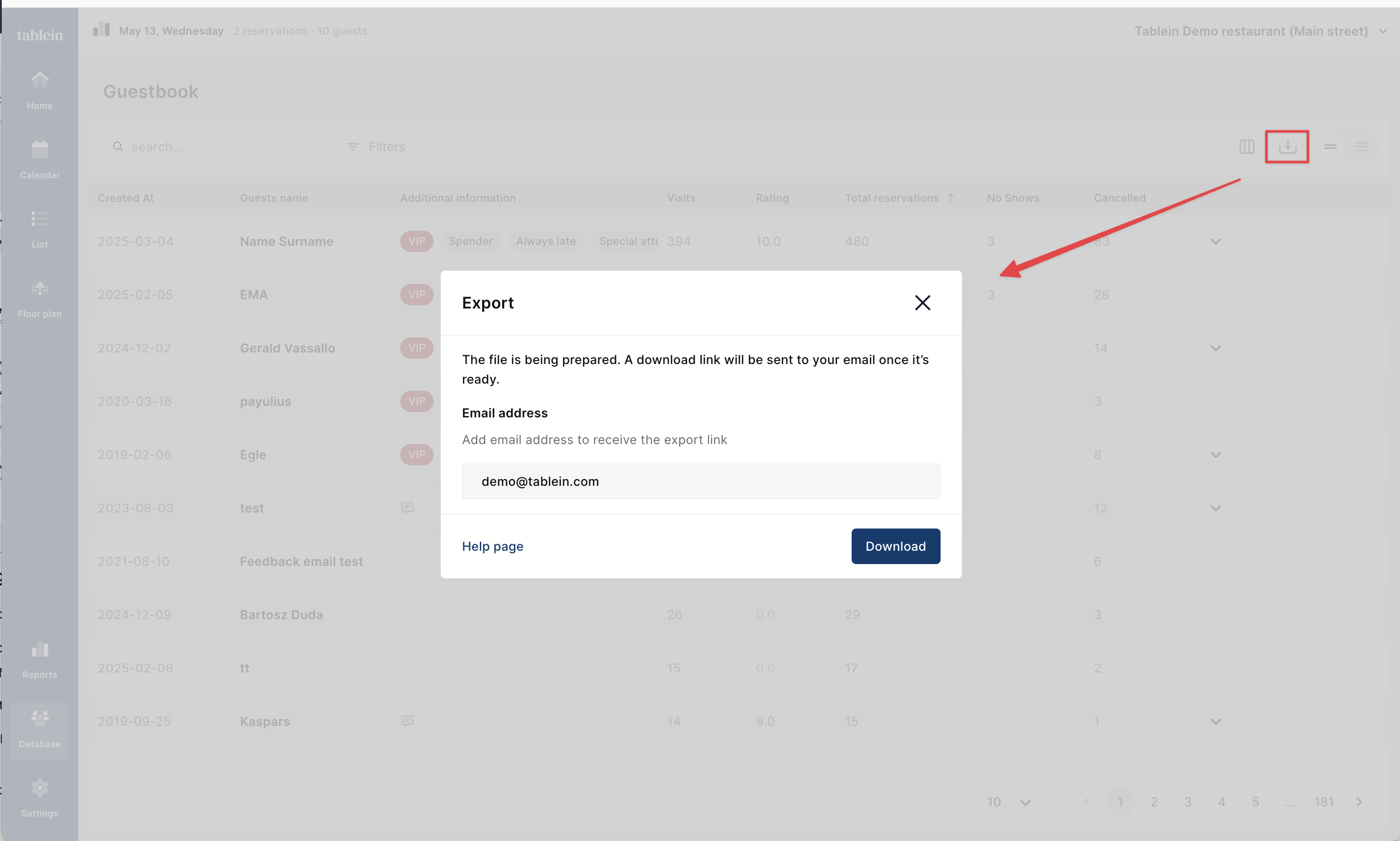
To export data:
- Click the Download button
- Select your preferred file format
- Enter the email address where the export should be sent
Please note:
- Only users with Owner or Manager permissions can export guest data
Once you receive the email:
- Click the download button in the email
- The file download will start automatically
- The file will appear in your Downloads folder or your computer’s default download location
Reservation Modal
When you enter a guest’s phone number or name into the search field, all available guest information will automatically appear.