
Exporting Reservations
The Reservations Database allows you to view, filter, customize, and export reservation data for reporting and analysis.
1. Open the Reservations Database using this link: https://admin.tablein.com/database/reservations
Filtering Reservation Data
Use the filter bar at the top of the page to select the reservation period you would like to export.
For example, you can filter reservations:
- From today onward
- By custom date range
- By reservation status
- By source or other available fields
After selecting your filters, click Save to apply them.
Only reservations matching the selected filters will be included in the export.
Customizing Columns
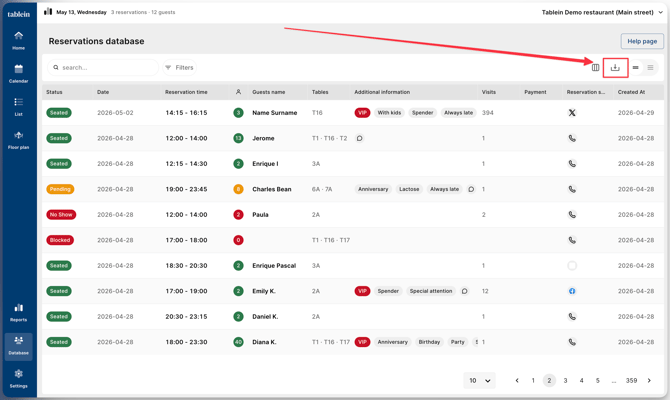
On the right side of the page, click Columns to customize your export.
You can choose:
- Which information to include in the export
- The order of the columns
This allows you to create exports that match your reporting or operational needs.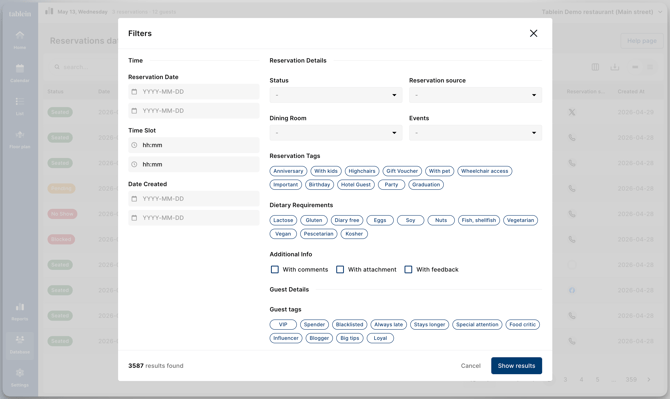
How to Export Reservation Data
- Open the Reservations Database
- Apply the required filters
- Customize columns if needed
- Click the Download button
- Select your preferred file format
- CSV
- Excel (.xlsx)
- Enter the email address where the export file should be sent
- Confirm the export
Depending on the size of the export, file generation may take a few minutes.
Permissions
Only users with the following permissions can export reservation data:
- Owner
- Manager
If you do not see the export option, contact your account administrator.
Receiving the Export File
Once the export is ready, you will receive an email containing a download link.
To download the file:
- Open the email
- Click the Download File button
- The file download will start automatically
The exported file will usually appear in your computer’s Downloads folder or your browser’s default download location.