
Queue management is used for guests who are waiting for a table right now.
Instead of standing at the front door, guests can:
-
wait at the bar and have a drink
-
wait in their car
-
go for a short walk
They stay in a digital queue and are notified by SMS when their table is ready.
Important basics
-
The queue works only for the current moment (not for future reservations).
-
Guests only need to enter:
-
Name
-
Phone number
-
-
The queue supports SMS only.
-
Emails are not available for this feature.
-
Before you start (IMPORTANT)
To use the queue feature, you must activate SMS messages.
Please open SMS settings and enable:
-
Joined queue SMS
-
Table is ready SMS
⚠️ Make sure to edit the SMS texts and waiting times.
The default text and time values may not match your real waiting times.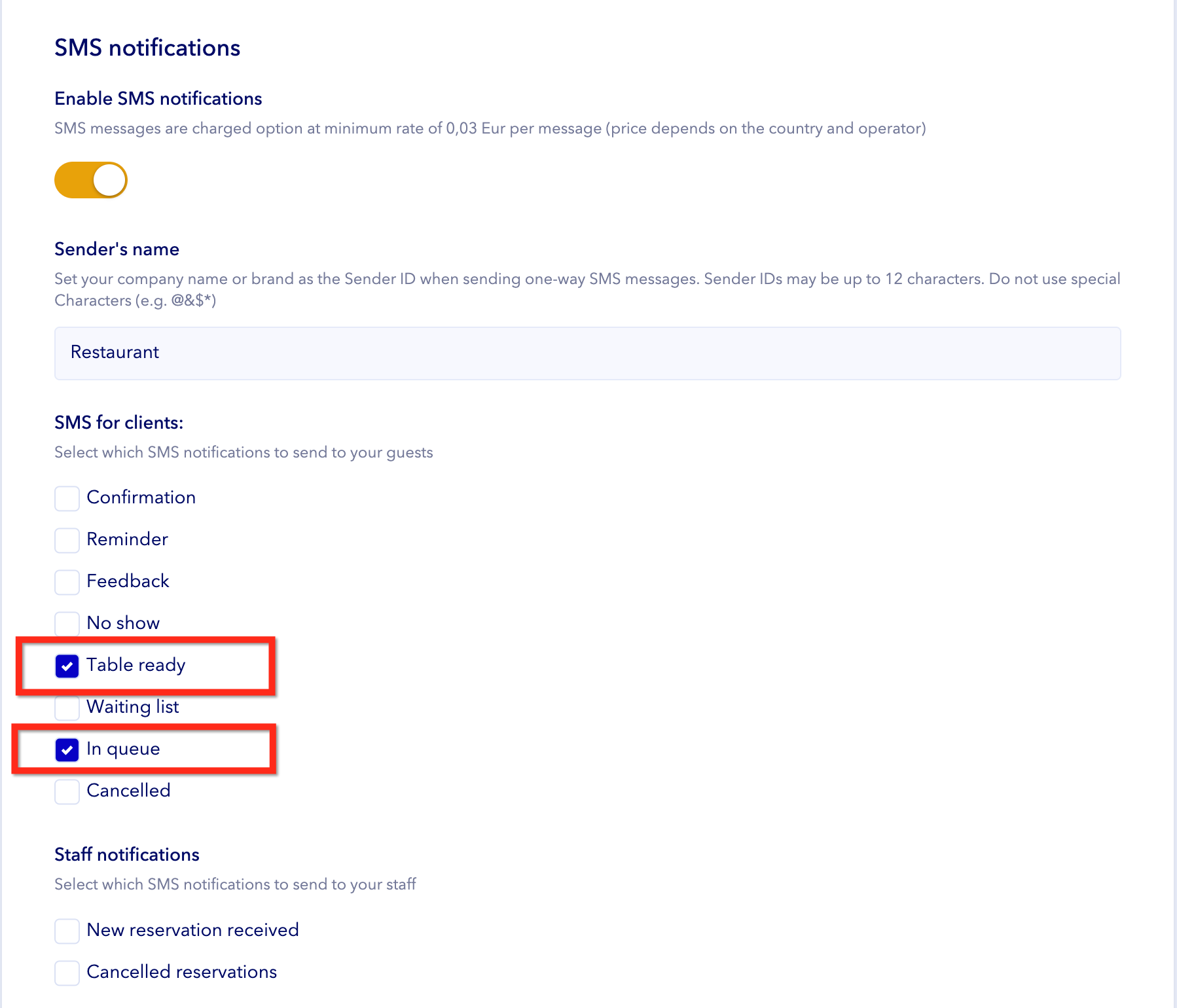
How the waiting time works (colors explained)
Guests are not shown in red or green.
Only the waiting time countdown changes color.
-
Red countdown
Starts when a guest joins the queue and shows how long the guest has been waiting for a table. -
Green countdown
Starts when you change the reservation status to Pending (table is ready) and shows how long the restaurant has been waiting for the guest to arrive at the front desk.
%202026-01-12%20at%2012-36-47%20PM-png.png?width=670&height=305&name=Tablein%20Demo%20restaurant%20(Main%20street)%202026-01-12%20at%2012-36-47%20PM-png.png)
How it works (step by step)
1. Create the queue widget
-
Create a new widget with type “In queue widget” (Widget integration -> Create New)
-
Use the widget link in one of these ways:
-
Create a QR code and place it at the entrance
(Free QR code tool: https://qr-generator.ai) -
Use a tablet or device at the front desk
-
Staff can add guests manually
-
-
Guests can also add themselves%202026-01-12%20at%2012-37-59%20PM-png.png?width=670&height=207&name=Tablein%20Demo%20restaurant%20(Main%20street)%202026-01-12%20at%2012-37-59%20PM-png.png)
2. View and manage the queue
-
The queue widget appears at the top of your calendar sidebar
-
Guests are sorted automatically
-
Guests who have waited the longest are shown at the top
-
-
The countdown timer shows waiting time:
-
Red while the guest is waiting for a table
-
Green while you are waiting for the guest to arrive
-
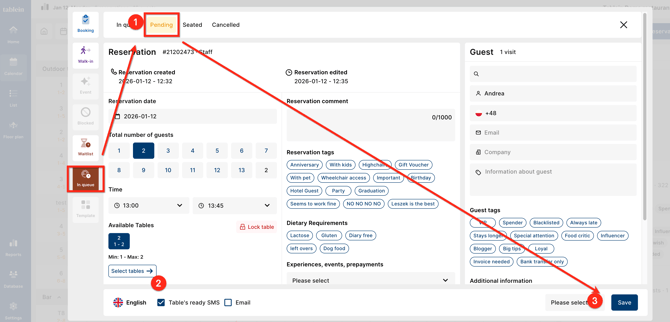
3. When a table becomes available
-
Select the guest from the queue
-
Change the status to Pending
-
Make sure “Table is ready” SMS is active
-
Assign an available table
-
Adjust reservation time and duration if needed
⚠️ If the system shows a table error even though the table is empty, adjust the time slot - this usually fixes the issue.
After this:
-
The countdown turns green
-
The guest receives an SMS that the table is ready
4. When the guest arrives (or not)
-
When the guest arrives, change status to Arrived
-
If the guest does not come:
-
Change status to Cancelled or No-show
-
%202026-01-12%20at%2012-39-47%20PM-png.png?width=670&height=337&name=Tablein%20Demo%20restaurant%20(Main%20street)%202026-01-12%20at%2012-39-47%20PM-png.png)
Important note about cancellations SMS
Do not use the reservation cancellation link.
Queue reservations are already considered started, so guests must call the restaurant to cancel.