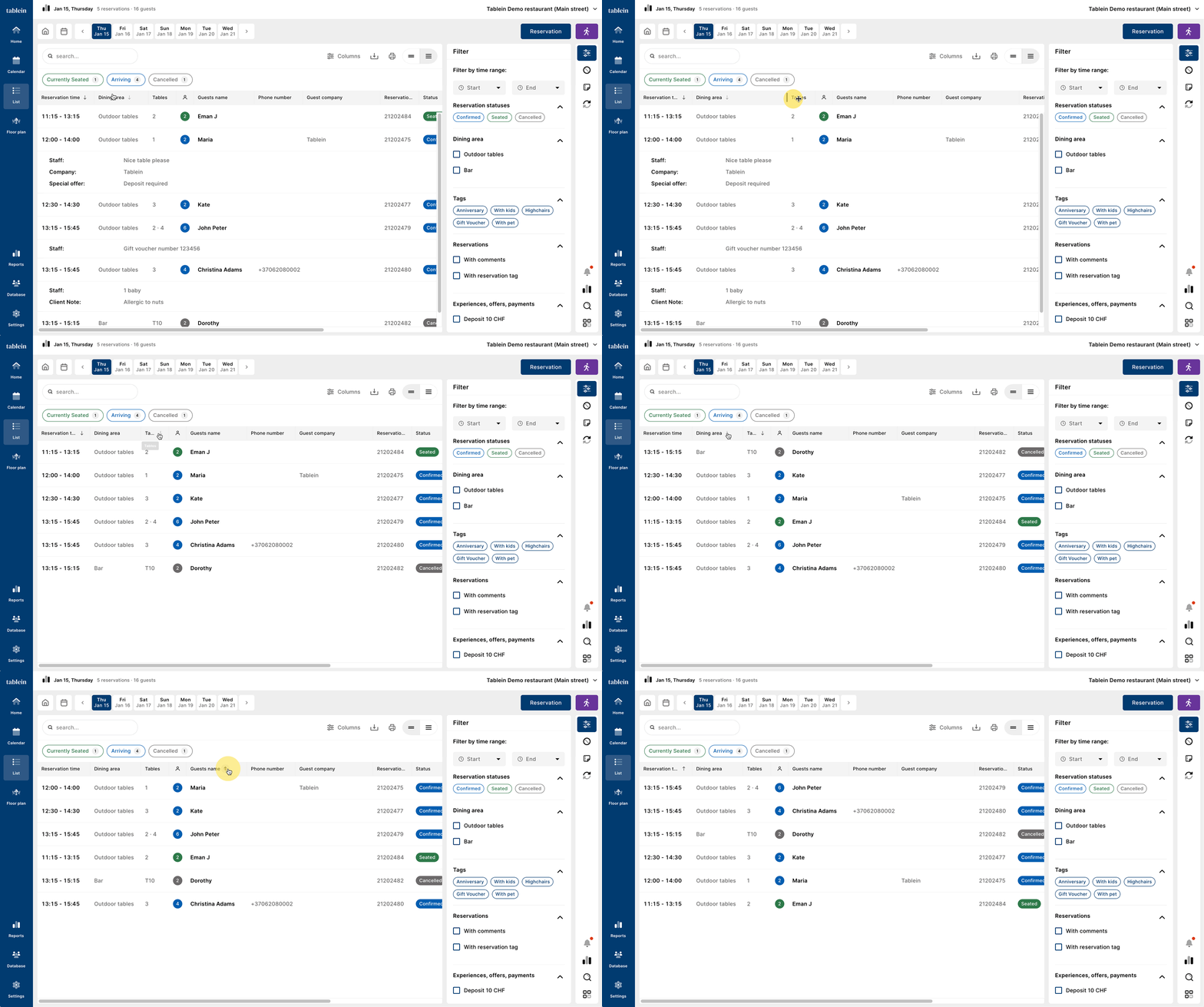
The reservation list shows all reservations, sorted by reservation date.
This view is fully customizable, so you can see only the information you need and arrange it in the way that works best for you.
Once you save your setup, the system will remember your column selection and order for next time.
Customizing the list view
1. Columns
-
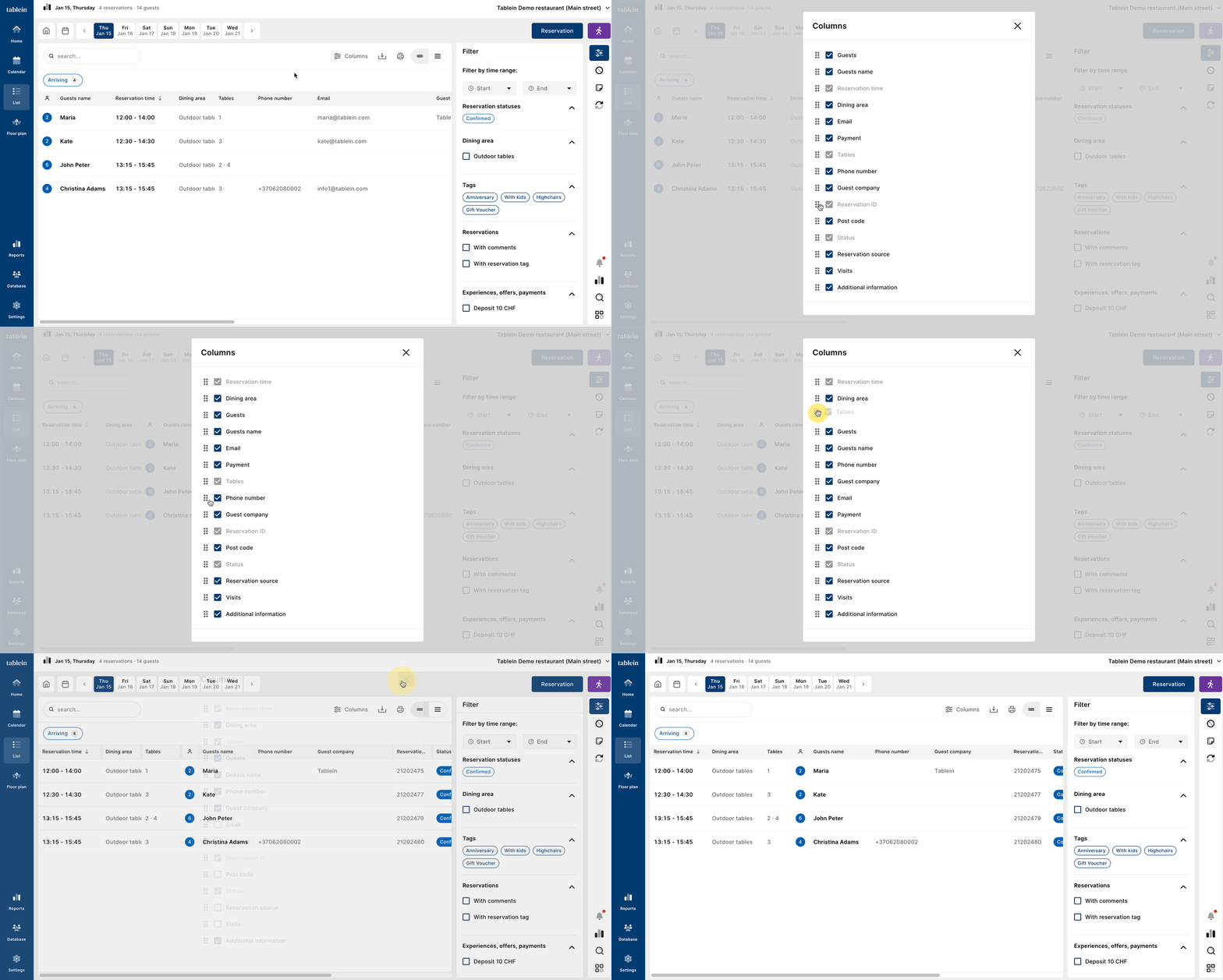
Click Columns to choose:
-
Which columns you want to see
-
The order of the columns
-
-
If you never use a column, simply disable it
-
You can drag and reorder columns to create your preferred view
If content does not fit, you can expand any column to see all data
2. Export
-
Export your reservations as:
-
CSV
-
Excel
-
Useful for reports, accounting, or external analysis.
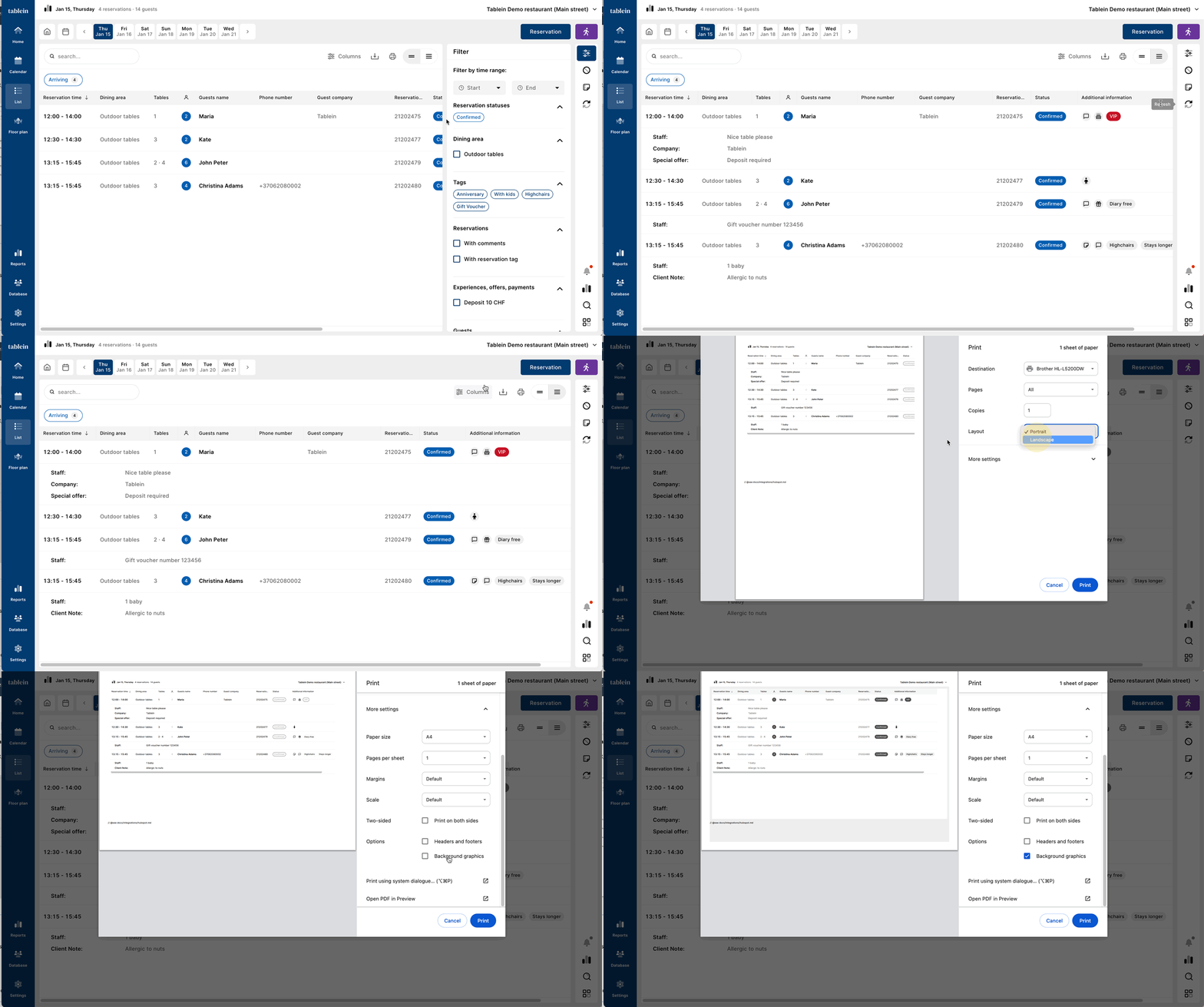
3. Print
-
Before printing, make sure all columns fit on the page
-
For best results:
-
Use horizontal (landscape) format
-
Disable the sidebar to get more space
-
-
Always check that all columns are visible before printing
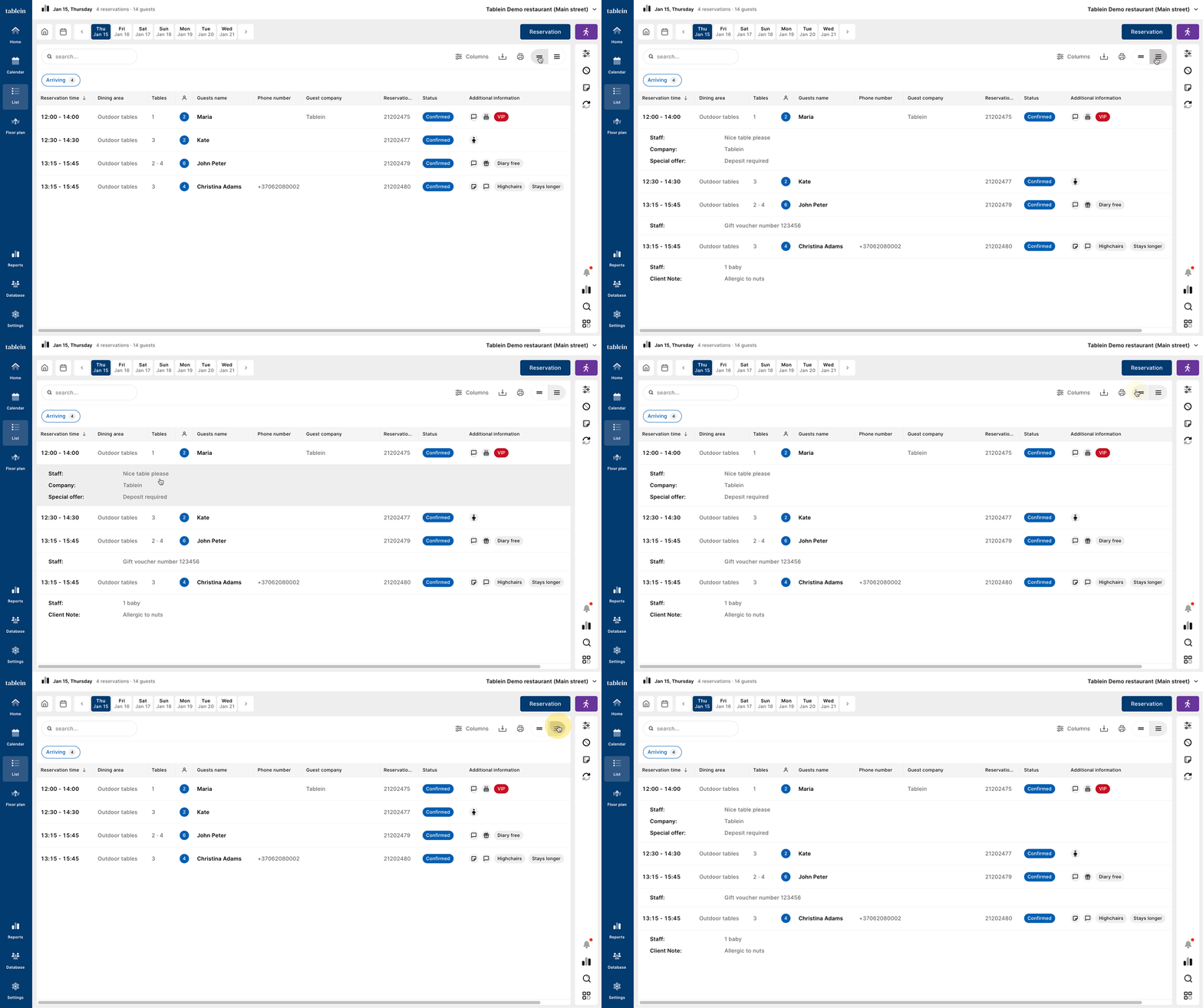
Expanded view
-
The expanded view shows full reservation details, including:
-
All comments
-
Selected offers
-
Additional reservation information
-
Day statuses and quick filters
Day statuses
-
Quickly filter reservations by status:
-
All (default)
-
Currently seated
-
Upcoming
-
-
Click a status to apply the filter
-
Click it again to remove the filter and return to “All”
To see even more results:
-
Open the sidebar
-
Select all statuses
-
The system will show all matching reservations
You can also filter by:
-
Experiences
-
Reservations with comments
Reservations with tags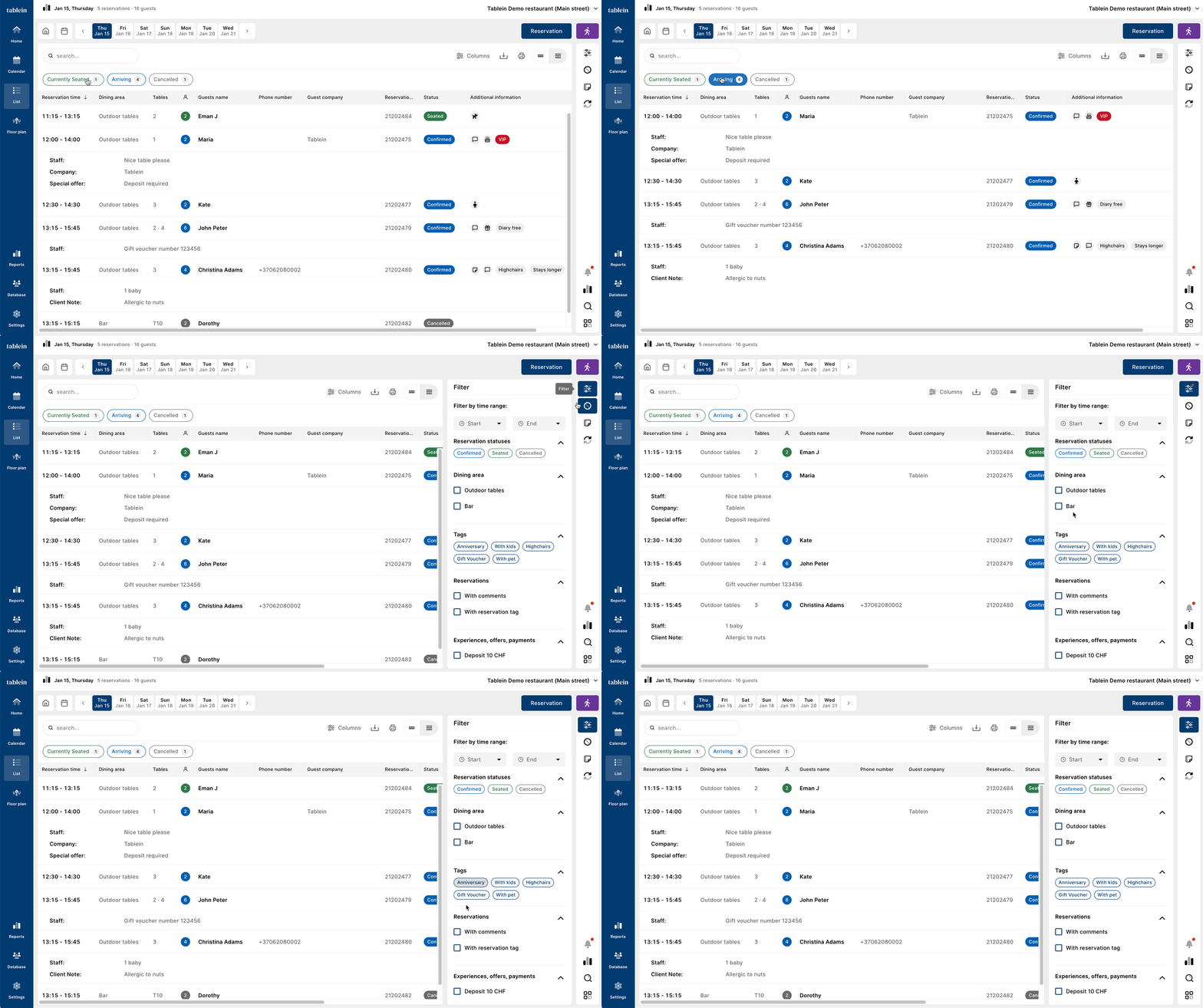
Sorting and resizing columns
-
Every column can be:
-
Expanded to fit content
-
Used for sorting
-
-
To sort:
-
Click the arrow next to the column name
-
Click again to change sorting direction