
To access your Floor Plan editor, go to: https://admin.tablein.com/floor-plan/edit
How to Add Tables to Your Floor Plan
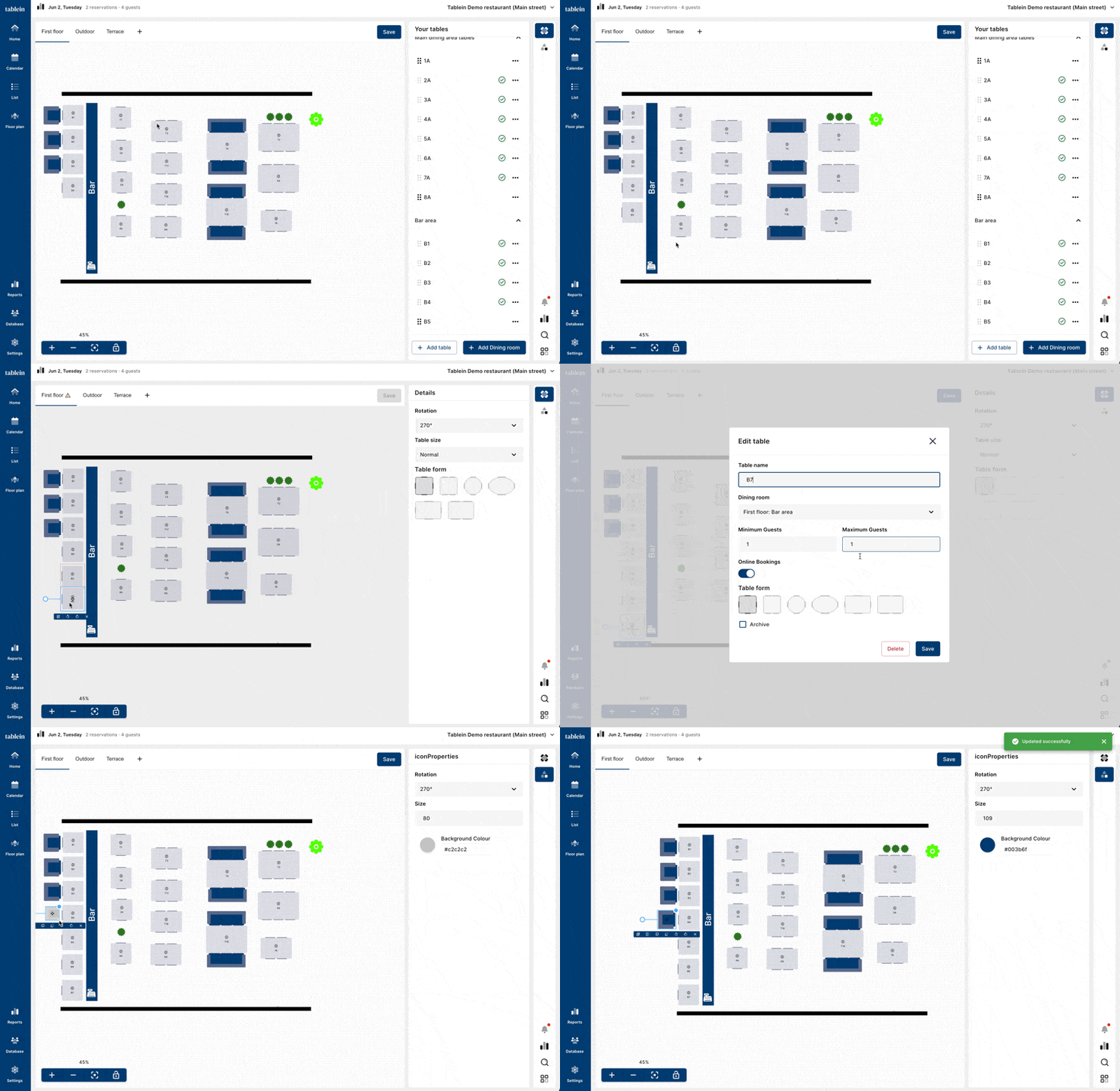
All available tables are listed in the left sidebar.
- Tables already added to the floor plan are marked with a green checkmark.
- Click and drag a table from the sidebar onto the floor plan.
- Once a table is selected, you can:
- Change its shape
- Rotate it
- Switch between small and large sizes
- Use the zoom controls to zoom in or out and arrange your tables more easily.
- After placing all tables, click Center to automatically fit the entire floor plan on your screen.
How to Add a New Dining Room
Step 1: Create a Dining Room
- Click Add Dining Room in the bottom-right corner of the sidebar.
- Enter the dining room name and save it.
- The new dining room will appear at the top of the floor plan editor.
Step 2: Add Tables to the Dining Room
- Click Add Table.
- Select the dining room from the dropdown menu.
- Choose:
- Number of guests
- Whether the table can be booked online
- Save the table.
The table will appear in the sidebar. Drag it onto the floor plan and place it where you want.
Important!
If a red outline appears around a table, it means the tables are positioned too close together.
Please move them slightly apart. This is required because reservation cards are displayed on tables during service, and overlapping tables can cause reservation information to overlap.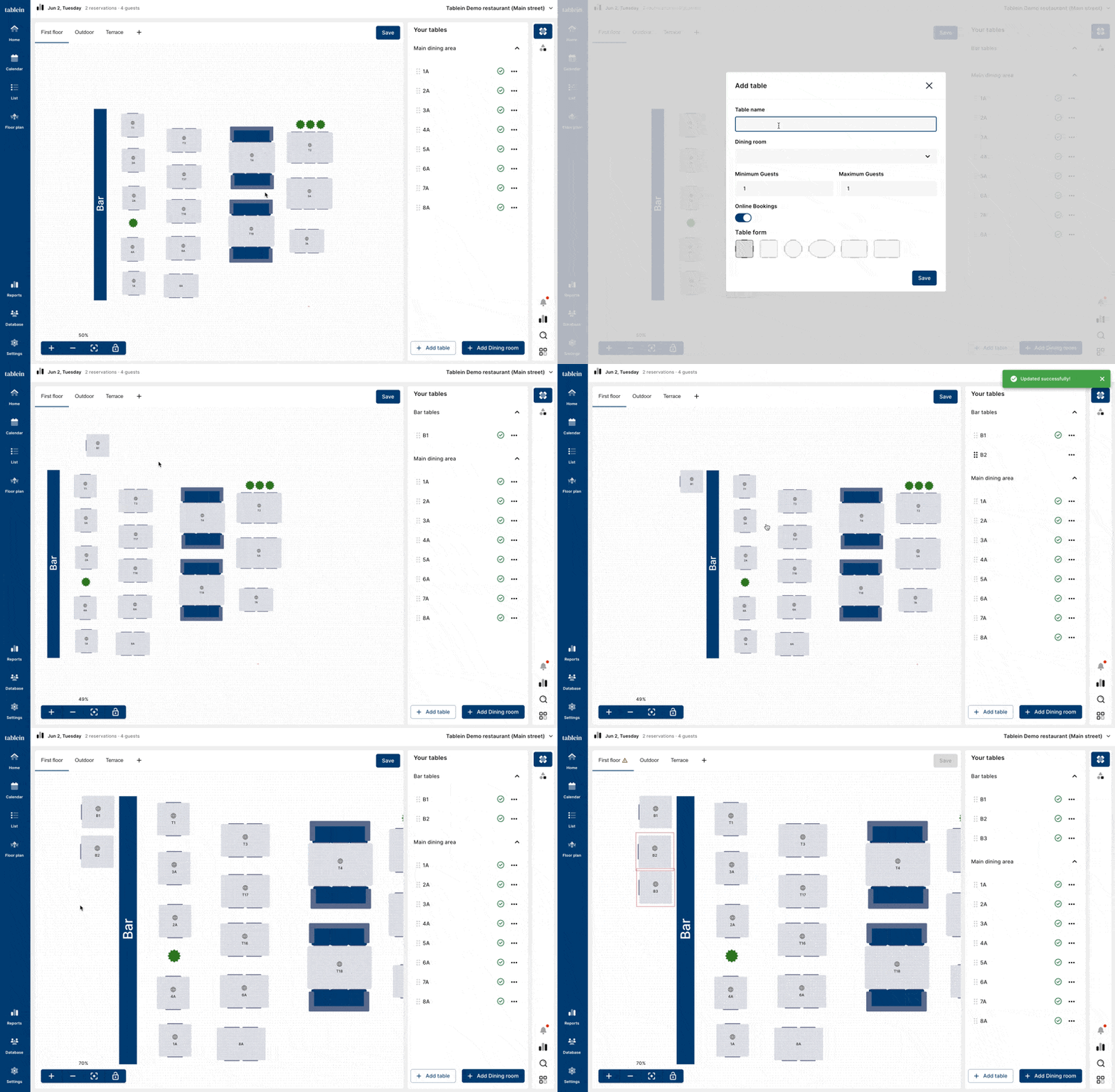
How to Add a New Layout
A layout must contain at least one dining room and tables.
Before You Create Multiple Layouts
Each layout can have its own opening hours configured in Opening Hours Settings.
For simplicity, we strongly recommend using a single layout whenever possible. If you use multiple layouts and need to block online bookings, you will have to switch to each layout individually and block availability separately.
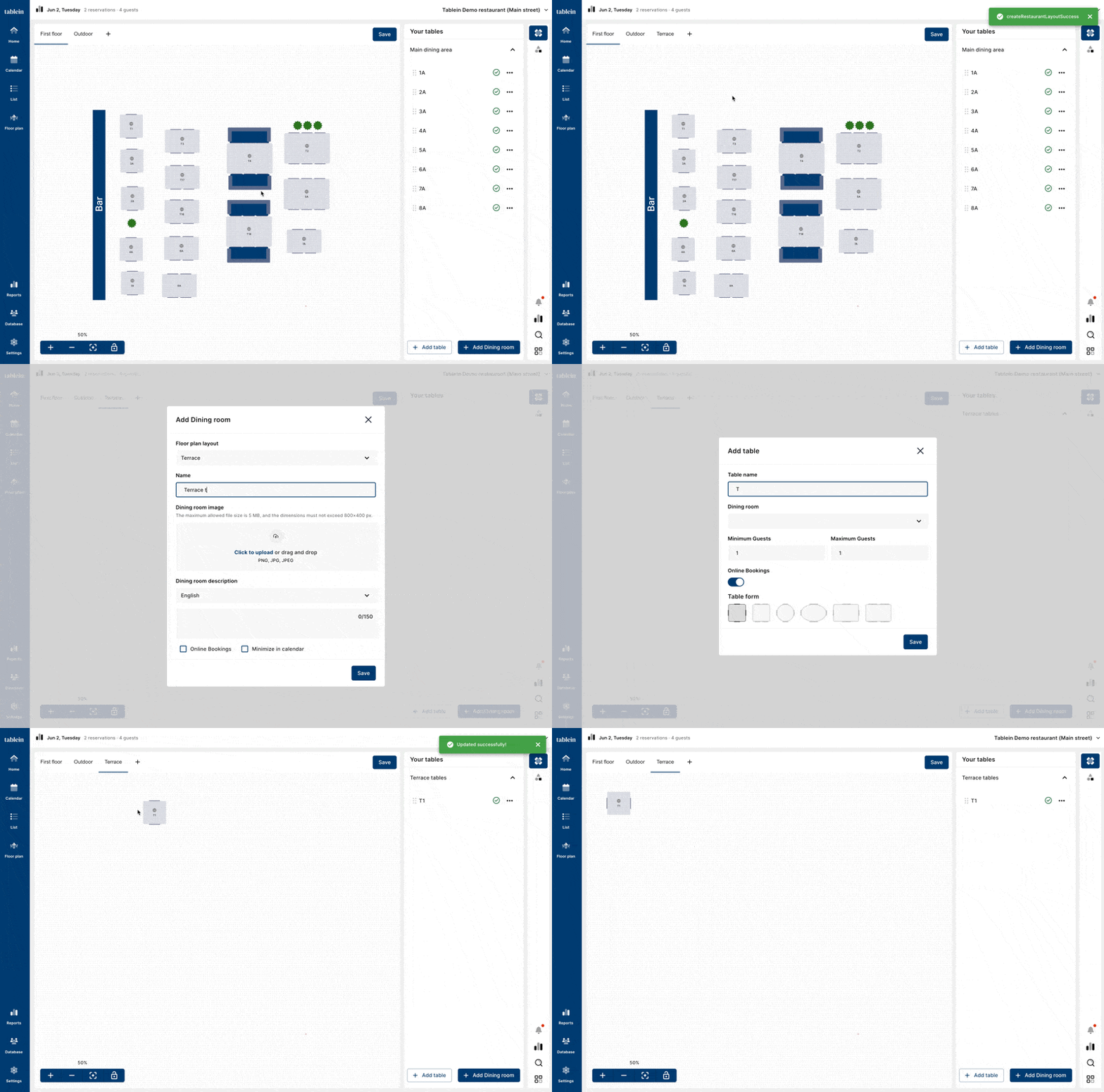
Create a New Layout
- Click the + icon in the top-left corner of the Floor Plan editor.
- Enter a layout name.
- Choose whether online reservations should be enabled for this layout.
- Save the layout.
After creating the layout:
- Open the new layout.
- Add one or more dining rooms.
- Add tables to the dining rooms.
- Drag the tables onto the floor plan and arrange them as needed.
How to Add Elements and Text to Your Floor Plan
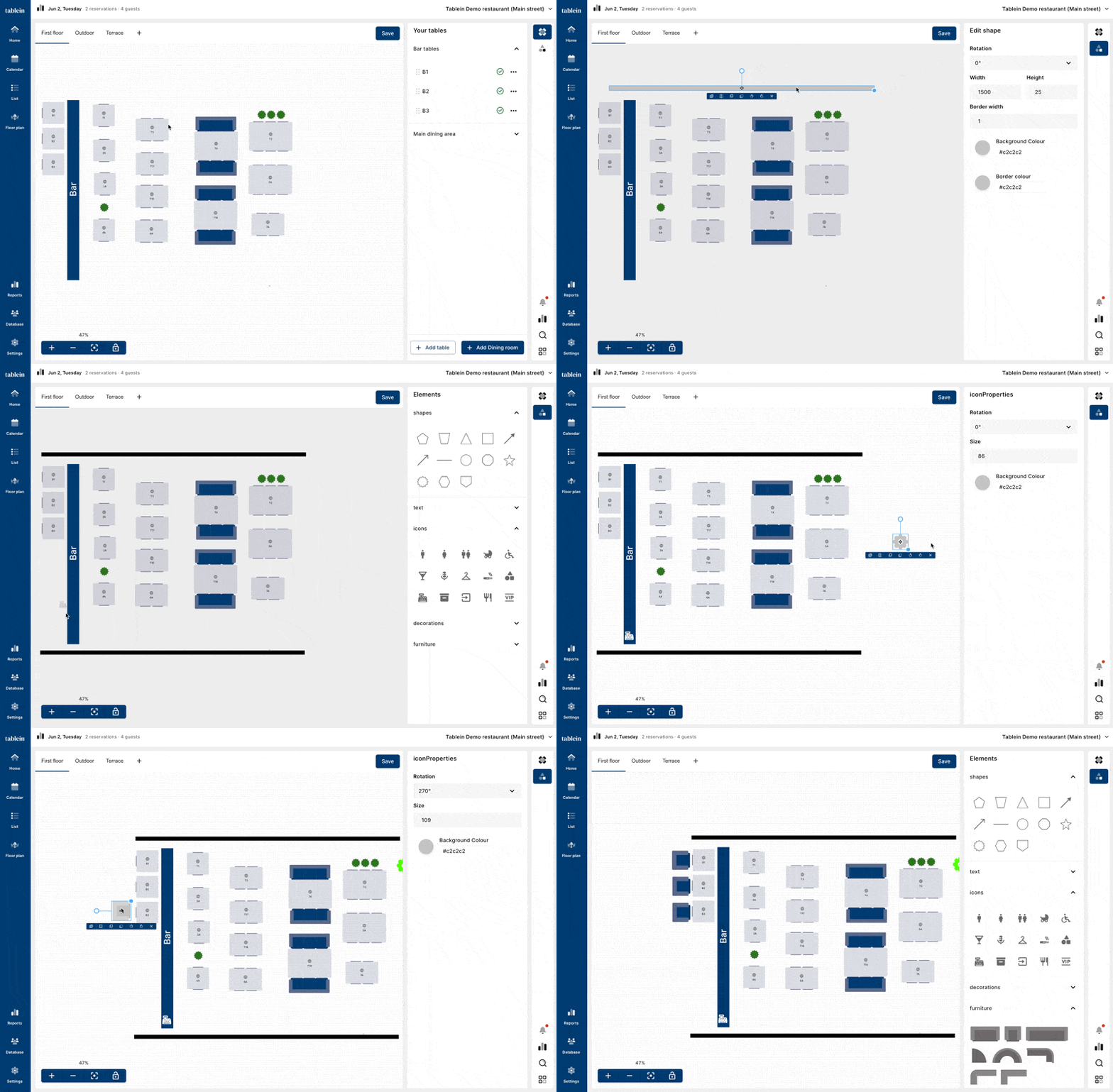
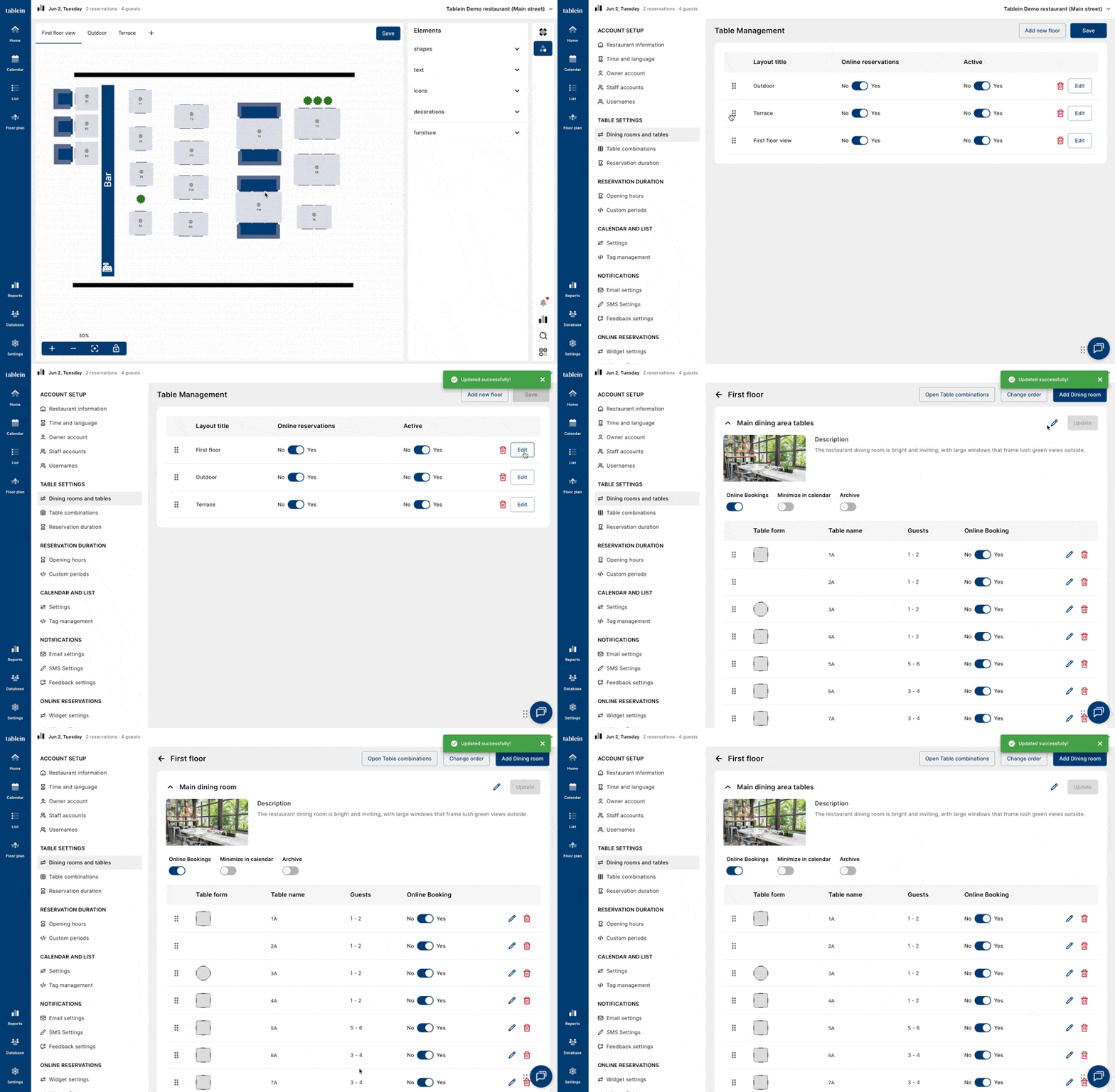
Use the panel on the right side of the editor and switch from Tables to Elements.
You can choose from:
- Elements
- Text
- Icons
- Decorations
- Furniture
To add an item:
- Click or drag the item onto the floor plan.
- Move it to the desired location.
Selected elements can be:
- Resized
- Flipped
- Recolored
- Duplicated
This allows you to create a floor plan that closely matches your restaurant layout.
How to Edit Layout and Dining Room Names
Layout names and dining room names can be changed in Dining rooms and Tables Settings.
Area Selection on the Booking Widget
If you want guests to choose between areas such as:
- Bar Seating
- Outdoor Terrace
- Main Dining Room
- Private Room
Each area must be created as a separate dining room. These dining rooms will then be available for guests to select during the booking process. To change
How to Change Layout, Dining Room, and Table Order.
Change Layout Order
The order of layouts determines which layout appears first in the Floor Plan editor.
To change the order:
- Open Dining rooms and Tables settings
- Click and hold a layout.
- Drag and drop it into the desired position.
The layout placed first will be shown first in the list.
Change Dining Room Order
The order of dining rooms affects how they are displayed throughout the system and on the reservation widget.
To change the order:
- Open Dining rooms and Tables settings
- Select the desired Floor Plan and click Edit.
- Click Change Order.
- Drag and drop dining rooms into the preferred order.
- Save your changes.
Change Table Booking Priority
Table order determines which tables are assigned to reservations first when automatic table allocation is used.
To change table priority:
- Open Dining rooms and Tables settings
- Select the desired Floor Plan and click Edit.
- Navigate to the dining room containing the tables you want to reorder.
- Click Change Order.
- Drag and drop the tables into your preferred order.
- Click Save to apply your changes.
Tables at the top of the list will be prioritized before tables lower in the list.
If you have any issues setting up your floor plan, dining rooms, or tables, please contact us at support@tablein.com or via live chat. Our team will be happy to assist you.